
DuckConvert · · Updated
How to Extract ZIP Files Online Privately
ZIP files are the standard way to package multiple files into a single archive for sending over email or downloading from a website.
But what do you do if you are on a locked-down Chromebook or a corporate laptop without standard unzipping software? Often, people turn to "Online Unzipping" tools to extract their files.
This is a massive privacy risk. Many online ZIP extractors force you to upload the archive to their cloud servers. When you do this with a ZIP file containing sensitive personal photos, corporate secrets, or financial spreadsheets, you completely surrender your data privacy.
The Browser-Based Unzipping Revolution
Thanks to modern web technologies like fflate, it is now possible to extract a ZIP file entirely inside your web browser.
When you use our Extract ZIP tool, you are not uploading anything. Instead, the application runs entirely locally on your device, decoding the ZIP file and extracting the individual files directly to your computer's memory.
Why You Should Avoid Cloud Extractors:
- Total Security: By keeping extraction local, you guarantee that nobody can intercept or store the files hidden within your archive.
- Lightning Fast: Cloud extractors require you to wait for the entire ZIP file to upload, process, and then download the results. Our tool unzips locally in milliseconds.
- No File Size Limits: Because you are using your own device's processing power, there are no artificial file size limits or paywalls blocking large archives.
Step-by-Step: Extracting ZIPs with DuckConvert
Our extraction tool is designed to be completely straightforward and secure:
- Navigate to our Extract ZIP tool.
- Drag and drop your
.ziparchive into the Dropzone. - Instantly, your browser will read and extract the archive, providing you with a list of the files contained inside.
- You can choose to download individual files using the "Download" button next to each item, or click "Download All" to sequentially save every file to your local machine.
Stop uploading your archives to unknown cloud servers. Try our fully secure, local ZIP extractor today!
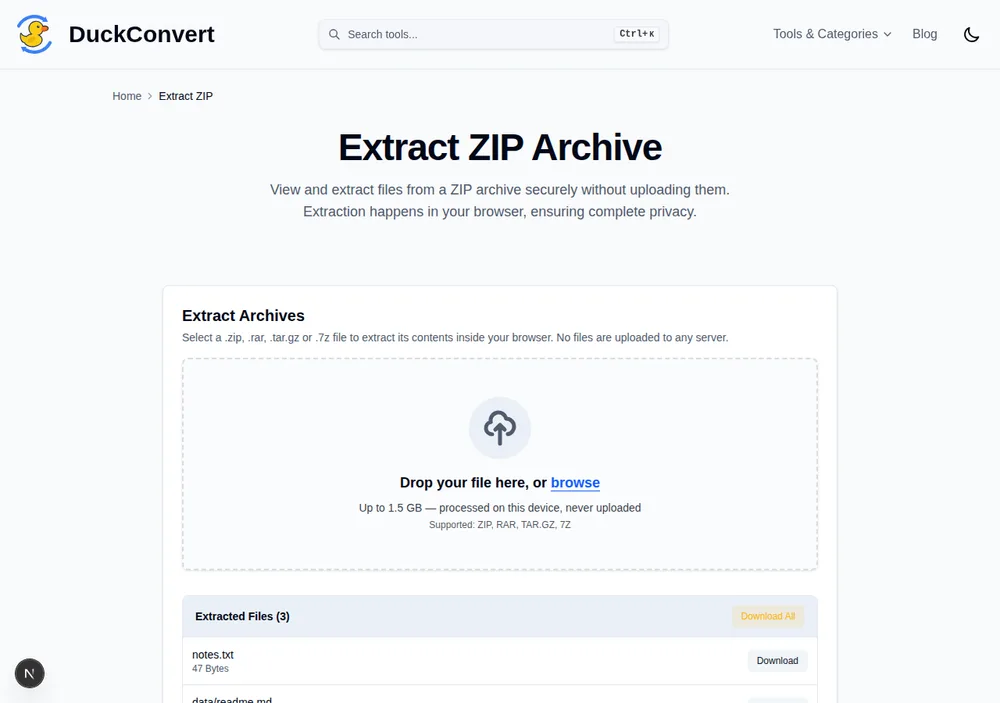
A real archive, read and listed entirely client-side.
Why the filenames sometimes come out as gibberish
Open an archive made on an older Windows machine and you may find names full of symbols where accented letters should be. This is not corruption, and it is worth understanding because it is entirely a specification problem.
The original ZIP specification predates Unicode. Filenames were stored in whatever code page the creating machine happened to use, usually CP437 or a regional variant, with nothing in the file recording which one. A later revision added a flag bit declaring that names are UTF-8, and modern tools set it. Plenty of older ones do not, and archives from Japanese, Russian or Central European Windows systems frequently carry names in an unannounced local encoding.
An extractor has no reliable way to recover the intended characters, because the information identifying the encoding was never written down. Renaming the files after extraction is the only real fix. If you are creating archives that will travel, use a tool that sets the UTF-8 flag, and prefer ASCII filenames for anything crossing platforms.
The extra files nobody asked for
Archives made on macOS routinely contain a __MACOSX folder and a scattering of
files beginning with ._, alongside the occasional .DS_Store.
These are AppleDouble files. macOS attaches metadata to files, resource forks,
Finder colour labels, quarantine flags, that other filesystems have nowhere to
put, so when the archiver hits a format that cannot represent them it writes
them alongside as separate hidden entries. .DS_Store is unrelated and simply
records how a Finder window was arranged.
None of it is needed on any other platform, and none of it is harmful. It is
noise, and it does mean a "12 file" archive can list thirty entries. Ignore
anything under __MACOSX and anything starting with ._.
Compressed, stored, and why a ZIP of JPEGs saves nothing
Not every entry in a ZIP is compressed. Each one records its own method, and "stored" means the bytes were copied in verbatim.
Good archivers choose this deliberately, because compressing already-compressed data is worse than useless: the DEFLATE stream ends up marginally larger than the input while costing time at both ends. JPEGs, PNGs, MP3s, MP4s and PDFs containing images are all already compressed, which is why zipping a folder of holiday photos produces an archive almost exactly as large as the folder.
Where ZIP still earns its place there is bundling. One file to attach, one file to download, one file that arrives complete or not at all. If your aim is genuinely to make a set of photos smaller, compress the images themselves before archiving them; the container cannot do it for you.
Encryption, and the two kinds of it
A password-protected ZIP may use either of two quite different schemes. The original, usually called ZipCrypto, dates from 1990 and is comprehensively broken: given a modest amount of known content, the password can be recovered in seconds. Anything relying on it should be treated as unprotected.
The modern option is AES, added in a later revision and genuinely secure when paired with a decent password. The trouble is that the extension gives no clue which one an archive uses, and support for AES-encrypted ZIPs is inconsistent across tools.
One thing holds for both: ZIP encrypts the contents of entries, not the
directory listing. Filenames, sizes and folder structure stay readable to
anyone holding the archive. A file called resignation-letter-final.docx tells
its own story regardless of whether anyone can open it.