
Skip to content

Video & Audio Converters

Convert, crop, or extract audio tracks. Operating 100% locally using WebAssembly, your heavy video and audio streams are never uploaded over the internet.

Universal File Converter: Private & Fast

Convert images, videos, audio, and documents directly in your browser. Your files never leave your device, ensuring 100% privacy and security.

Video & Audio Converter

Extract audio from video or convert audio files between popular formats.

Advanced Media Tools

100% In-Browser Processing

Your files are processed strictly in local device memory. Nothing is uploaded. See how, and check for yourself.

How It Works

How to convert files with DuckConvert

1

Select Your File

Choose the file you want to convert from your device or drag and drop it into the converter.

2

Choose Output Format

Select your desired output format and any specific settings for your conversion.

3

Convert & Download

Click "Start Conversion" and wait for the local process to finish, then download your new file.

Secure Client-Side Media

Your personal video recordings, voice notes, and media files remain safely on your machine. No server-side transcoders ever view, process, or keep copies of your media files.

Save Network Bandwidth

Traditional web converters consume double your internet data (uploading the heavy video file and downloading it back). DuckConvert executes everything inside RAM, wasting 0MB of internet data.

Runs on your own CPU

WebAssembly executes close to native speed, on one core: this is the single-threaded ffmpeg build, so an encode does not get faster on a machine with more cores. A long encode is still a long encode — the estimate shown before you start is the honest one.

How FFmpeg WebAssembly Powers Offline Media Conversion

Historically, digital media conversion was incredibly taxing, requiring specialized command-line binaries compiled specifically for individual operating systems (Linux, macOS, Windows). Executing these processes inside a sandboxed web browser was deemed impossible.

With the emergence of WebAssembly (WASM), developer toolchains can compile raw C and C++ source repositories directly into platform-independent instruction sets. Under the hood, DuckConvert utilizes the official @ffmpeg/ffmpeg package:

The Client-Side Transcoding Process:

  1. File System Mapping: The chosen media file is read into memory, creating a virtual file node inside FFmpeg's localized in-memory virtual file system (MEMFS).
  2. Multi-threaded Execution: The browser spawns concurrent web worker threads that decode the input container streams, analyze raw audio and video packets, and feed them through requested demuxers.
  3. Target Codec Generation: FFmpeg's encoders compress the raw frames, write them to a new output node inside MEMFS, and dump the finalized byte buffers back into a JavaScript Blob for rapid local download.
What each output format is actually encoded with

There are no quality sliders here, so it is worth publishing what the presets are. These are the exact settings the worker passes to ffmpeg.

  • MP4 — H.264 via libx264 at CRF 23 with the veryfast preset, pixel format forced to yuv420p, audio AAC at 128 kbps. CRF 23 is x264’s own default and is visually close to the source for most material. Forcing the pixel format is what makes the result play everywhere: some phone captures use a format many players show as a green or blank rectangle.
  • WebM — libvpx targeting 1 Mbps, audio Vorbis. That is VP8 rather than the newer VP9, which encodes far more slowly in WebAssembly than most people are willing to wait.
  • AVI — libxvid at quality scale 3, audio MP3. AVI exists here for old software that will not accept anything else; it is not a format to choose on merit.
  • Animated GIF — 10 frames per second, scaled to 480 pixels wide with Lanczos resampling, through a two-pass palettegen/paletteuse filter. The two passes matter: GIF allows only 256 colours, so the first pass reads the whole clip and builds a palette fitted to it. Without that step ffmpeg falls back to a generic palette and gradients band badly.
  • Audio — MP3 via LAME at -q:a 2 (variable bitrate, averaging roughly 190 kbps); M4A and AAC at 192 kbps; WAV as uncompressed 16-bit PCM; FLAC and Vorbis at their own defaults.

Two consequences worth knowing

Every conversion re-encodes. There is no stream-copy path, so a file that only needed its container changed — an MOV already holding H.264, say — is decoded and compressed again anyway. That costs time and one generation of quality on a file that needed neither.

Opus output is deliberately missing. The encoder is compiled into the build and handles mono correctly, but crashes the entire WebAssembly module the moment it is handed a stereo stream, at any sample rate and in any container. Since nearly all real audio is stereo, offering it would fail for nearly every file. Downmixing to mono to dodge the crash would silently throw away a channel, so it is not offered at all. Reading .opus files is unaffected — that uses a different decoder, which is fine.

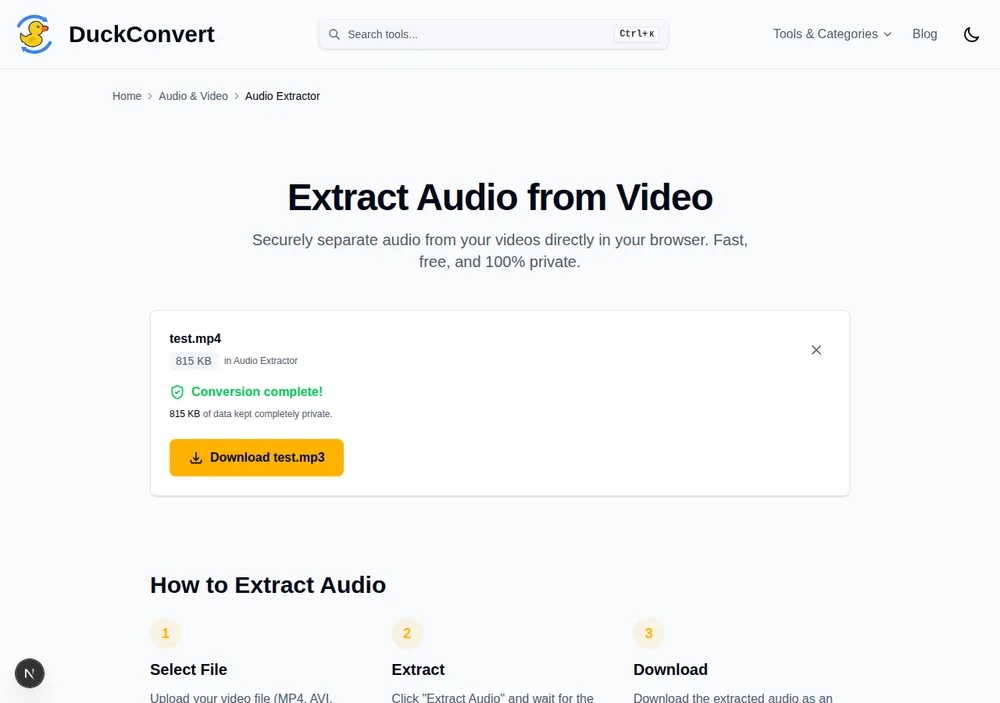
DuckConvert's audio extractor after a real ffmpeg run, showing 'Conversion complete!' and a Download button for the extracted MP3
A real MP4 going through the ffmpeg pipeline this section describes, entirely in the browser.

Video & Audio Converters FAQs

How can a web browser transcode heavy video files offline?

DuckConvert achieves near-native video processing speeds in your web browser by utilizing WebAssembly (WASM). We compile FFmpeg, the industry-standard, high-performance multimedia framework, into highly optimized WASM binary code. When you run a conversion, your browser executes this code in a separate background thread (Web Worker), which directly manipulates the raw file bytes in memory without touching an external server.

What media formats are supported for local conversion?

We support a wide array of audio and video formats, including MP4, WebM, MKV, AVI, MOV, FLV, MP3, WAV, OGG, M4A, and animated GIF. You can also transcode and convert between different containers or change codecs (such as H.264, VP9, or AAC) entirely offline.

Why does the first video conversion take a moment to start?

The very first time you convert a video or audio file, DuckConvert needs to download the compressed WebAssembly binaries (FFmpeg Core) to your local browser storage. This binary payload is roughly 25-30MB. Once downloaded, the browser caches it using CacheStorage. Subsequent visits load from that cache and work with no network at all. The encode itself still takes as long as the file requires.

Is there a video file size limit?

The primary limitation is your computer's system memory (RAM) and browser storage limits. Because browsers run inside a sandboxed environment, they are typically allocated a portion of your system's RAM (usually up to 2-4GB). For optimal performance, we recommend converting media files under 500MB, although modern desktop machines can comfortably process larger streams.