
DuckConvert · · Updated
How to Merge PDF Files Free and Offline
Combining multiple PDF files into one is a daily necessity for students, accountants, and office workers. Whether you are assembling a final report, organizing tax returns, or putting together a portfolio, merging PDFs is an essential skill.
However, searching for a "Free PDF Merger" online usually leads you to services that require you to upload your files to their cloud servers.
When you are dealing with sensitive, confidential documents like financial records, contracts, or personal IDs, uploading them to an unknown third-party server is a massive privacy and security risk.
The Privacy-First Way: Browser-Based Merging
To solve this problem, we built a 100% private, offline-capable PDF merger using WebAssembly and pdf-lib.
With our new PDF Merge Tool, your files never leave your device. The application code is loaded directly into your browser, and all the processing happens locally on your computer's CPU and memory.
Why You Should Merge Locally:
- Zero Data Leaks: Since no files are uploaded, there is absolutely zero risk of your documents being intercepted, leaked, or stored on a remote server.
- Instant Processing: You don't have to wait for large documents to upload and download. The merging happens in milliseconds, right on your machine.
- No File Size Limits: Because you are using your own computer's processing power, we don't need to impose artificial file size limits or paywalls. It is completely free.
Step-by-Step: Combining PDFs with DuckConvert
Merging your files is easier than ever:
- Navigate to our dedicated Merge PDFs tool.
- Drag and drop all the PDF files you want to combine into the dropzone.
- Arrange your files: You can use the up and down arrows in the list to put your documents in the exact order you need.
- Click the Merge PDFs button.
- In an instant, your browser will generate a new, combined PDF document and provide a secure download link.
Protect your data and stop uploading your personal documents to the web. Start merging your PDFs locally today!
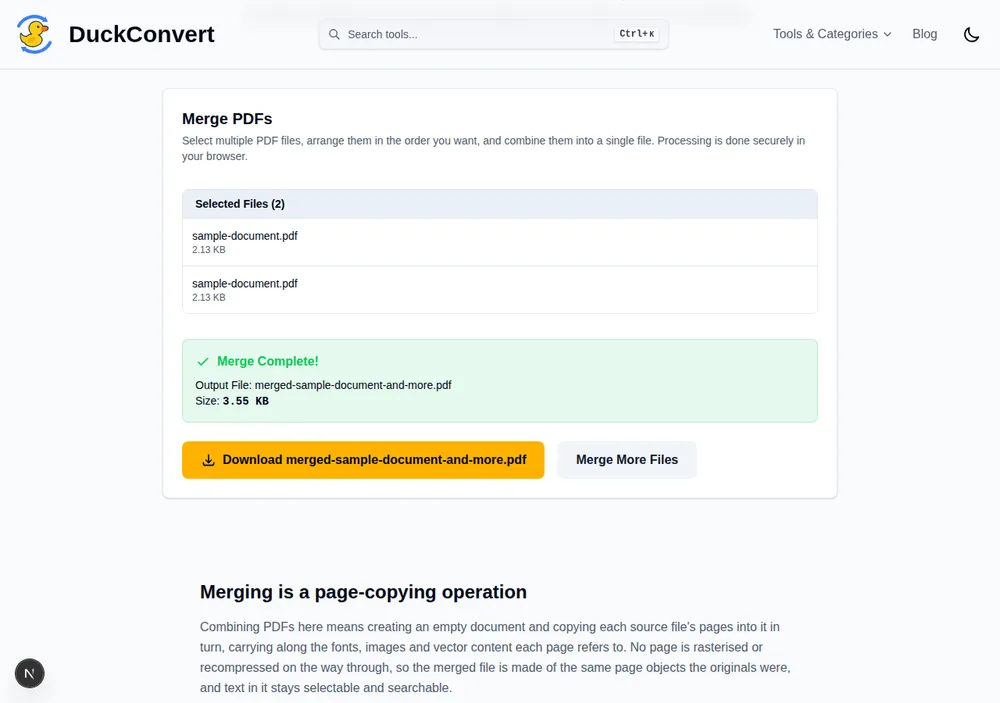
A real merge: two 2.13 KB PDFs combined into one 3.55 KB file, in the browser.
Why merging is not concatenation
Sticking two PDFs together end to end produces a broken file, and the reason is worth knowing because it explains most of what goes wrong when documents are combined badly.
A PDF is not a linear stream of pages. It is a collection of numbered objects, fonts, images, page descriptions, content streams, followed by a cross-reference table recording the byte offset of every one of them, and a trailer pointing at the document catalogue. Readers use that table to jump straight to what they need without parsing the whole file.
Join two of them and every offset in the second document is wrong, both files claim object number 1, and there are two catalogues competing to be the root. Merging properly means reading both documents, renumbering every object from the second so nothing collides, copying them across with their references rewritten, building a fresh page tree in the order you asked for, and writing a new cross-reference table over the lot.
That is also why a merged file's size lands near the sum of its inputs. The content is copied rather than recompressed. It can land slightly under when the sources share typefaces, because a font that each original carried its own copy of only needs to appear once in the combined file.
What lives on the document rather than the page
Some things belong to a PDF as a whole and have nowhere obvious to go when several documents become one.
Bookmarks are the most missed. The outline tree is a document-level structure, so a merged file typically arrives with none, and on a 200-page assembly of reports that is a real loss of navigability. It is worth checking whether your merge preserved them, and rebuilding them afterwards if the document is long enough to need them.
Form fields are the most dangerous. AcroForm fields live in a document-level
dictionary and are identified by name. Merge two copies of the same form and you
have two fields called signature, which readers resolve by linking them
together: type into one and the other changes to match. If you are combining
filled forms, flatten each one first so the values become page content rather
than live fields.
Tagged PDF structure, the accessibility tree that lets a screen reader announce headings and reading order, is likewise document-level. Merging frequently discards it, which turns an accessible document into an inaccessible one without any visible change.
Practical habits
Check page count before and after. It is the cheapest possible verification and catches a source file that failed to load silently.
Flatten filled forms before merging, as above.
Encrypted or password-protected sources cannot be merged at all until the protection is removed by whoever applied it, since their pages cannot be read.
And when what you actually want is a lighter file rather than one file, merging will not deliver it. Ten scans combined make one large document, not a compact one; shrink the images first, then combine them.