
DuckConvert · · Updated
How to Optimize SVG Files Locally for Web Performance
Scalable Vector Graphics (SVG) are the gold standard for rendering logos, icons, and illustrations on the web. Unlike raster images (such as JPGs or PNGs), SVGs are written in XML, meaning they scale perfectly to any screen size without pixelation.
However, SVGs generated by popular vector editing tools like Adobe Illustrator, Figma, or Sketch are often incredibly bloated. These files are typically stuffed with metadata, hidden layers, unneeded groups, empty comment blocks, and sub-optimal curve mapping.
If you are a web developer or a designer, serving an unoptimized 200KB SVG file to a mobile browser actively destroys your website's performance and Google PageSpeed Insights score.
The Browser-Based SVG Optimizer
For years, developers have run Node.js-based terminal commands like svgo to minify and clean up their files. Now, you can run the exact same high-powered optimization directly in your web browser.
With our new SVG Optimizer Tool, you do not need to upload your designs to a random server to strip away the cruft.
Our tool loads the SVGO engine straight into your browser's memory, running everything locally. This means your unreleased branding, proprietary icons, and company logos never touch an external cloud server.
Why You Should Minify Your SVGs:
- Faster Load Times: By shrinking SVG file sizes by up to 70%, your website's First Contentful Paint (FCP) metric vastly improves.
- Reduced Bandwidth Costs: The smaller your assets are, the less bandwidth you consume serving your users.
- Cleaner Codebases: SVGO cleanly removes all Adobe/Figma proprietary editor data from your graphics so that your actual web assets look incredibly neat.
Step-by-Step: Minifying SVGs with DuckConvert
Cleaning up your graphics takes just seconds:
- Navigate to our Optimize SVG tool.
- Drag and drop your
.svgfile into the Dropzone. - Choose your depth: We offer a "Multipass" optimization option. This forces the SVGO engine to repeatedly loop over your graphic until absolutely zero further reduction is mathematically possible. We highly recommend leaving this checked!
- Click the Optimize SVG button.
- In an instant, your browser will optimize the file and give you a detailed breakdown of your savings alongside a secure local download link.
Take back your website's performance and stop serving bloated graphics. Start optimizing your SVGs locally today!
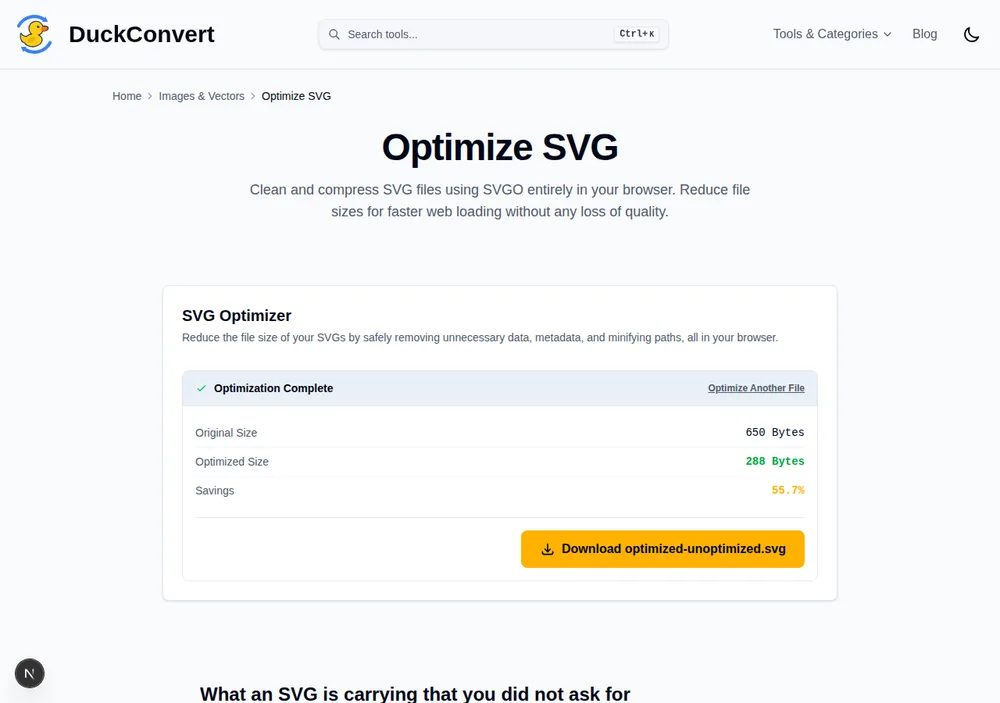
A real optimization pass: 650 bytes in, 288 bytes out — 55.7% smaller.
SVG is text, which changes the arithmetic
The most useful thing to know about SVG optimisation is that SVG is XML, so it goes over the wire gzipped or brotli-compressed like any other text asset. That changes which optimisations actually matter.
Compression works by finding repetition, and an SVG is full of it: the same attribute names, the same path commands, the same digits over and over. Consequently the raw file size and the transferred size can diverge sharply. A 40 KB SVG frequently transfers as 8 KB. An optimisation that cuts the raw file by half may cut the transferred size by considerably less, because much of what it removed was highly compressible anyway.
The corollary is more useful: optimisations that make the remaining text more repetitive punch above their weight. Rounding coordinates to two decimal places does not merely delete characters, it makes the numbers that survive resemble each other, which compresses better than the precise values did. Consistent attribute ordering and formatting help for the same reason.
So measure the gzipped size, not the raw one. That is the number your visitors actually pay for, and optimising against the raw figure can send you chasing changes that gain almost nothing over the wire.
The attribute you should never let anything strip
viewBox is what makes an SVG scalable. It declares the coordinate system the
artwork is drawn in, and without it the browser has no way to map that artwork
onto whatever size you have given the element.
Remove it and the SVG stops responding to CSS sizing. It renders at its intrinsic dimensions, crops rather than scales, or collapses entirely depending on context. This is the single most common way an "optimised" icon breaks, and it usually happens when a tool is configured to strip width and height attributes and something else removes the viewBox as well.
The safe combination is to keep viewBox and drop the fixed width and
height, which lets CSS control the size entirely. Keeping all three is fine
too. Dropping the viewBox is never fine.
Optimisations that make an icon more useful, not just smaller
Two changes are worth making by hand after any automated pass, because they make the file better rather than only lighter.
Replace hard-coded fills with currentColor. An icon whose paths are set to
fill="currentColor" inherits the text colour of wherever it is placed, so one
file serves a dark theme, a light theme, a hover state and a disabled state
without duplication. For an icon set this eliminates whole categories of
near-identical assets.
Second, know that inlining and linking behave differently. An SVG referenced
through an <img> tag is isolated: your page CSS cannot reach inside it, and
currentColor has nothing to inherit from. Inlined directly in the markup, it
becomes part of the document and is fully styleable, at the cost of not being
cached separately and of bloating the HTML. Icons that need to respond to theme
or state should be inlined or delivered through a sprite; decorative artwork is
better referenced and cached.
Finally, when a graphic is driven from outside itself, by keyframes in your stylesheet or by a script reaching into it, confirm that the ids and class names those rules target are still present afterwards. Anything the document does not appear to reference internally is fair game for removal, and a script silently doing nothing is a harder bug to spot than a visibly broken graphic.