Manage, convert, split, or merge your PDF documents securely. Running 100% locally on your computer, your files are never uploaded, keeping confidential records safe.
Universal File Converter: Private & Fast
Convert images, videos, audio, and documents directly in your browser. Your files never leave your device, ensuring 100% privacy and security.
Merge & Convert PDFs
Combine multiple PDF files or convert a PDF page to an image entirely in your browser.
Or select multiple PDFs to merge at once:
100% In-Browser Processing
Your files are processed strictly in local device memory. Nothing is uploaded. See how, and check for yourself.
Choose the file you want to convert from your device or drag and drop it into the converter.
2
Choose Output Format
Select your desired output format and any specific settings for your conversion.
3
Convert & Download
Click "Start Conversion" and wait for the local process to finish, then download your new file.
Why Cloud-Based PDF Converters Pose a Severe Security Threat
Uploading files like scanned passports, contracts, banking statements, and legal agreements to traditional online PDF websites is highly insecure. Many services log file content, index text, and store items on unsecured clouds, risking corporate data leaks and identity theft. By executing all document logic inside your browser's sandboxed environment, DuckConvert provides absolute client-side privacy.
How Safe Browser-Native PDF Merging and Splitting Works
A PDF (Portable Document Format) is essentially structured as a tree of objects containing page tables, media resources, layout streams, and structural cross-reference tables. DuckConvert uses high-performance JavaScript engines like pdf-lib to read this tree structure from your selected file's local ArrayBuffer memory:
Local Parsing: The browser reads the raw bytes directly, verifying document headers and locating structural offset pointers immediately in RAM.
Page Mapping: Instead of re-rendering, we dynamically extract or clone page directories. When merging, we copy content references and append them into a clean, new document catalog.
Instant Export: The browser recompiles the internal structural indices and triggers an instant local download. Your files remain completely secure because there are no servers involved in the loop.
Zero-Server Text Layer Extraction (PDF to Plain Text)
When converting a PDF document to plain text (.txt), our program imports a localized WebAssembly worker instance of Mozilla's pdfjs-dist. This engine processes the document page-by-page, rendering the text layers in a virtual layout grid, mapping typography coordinates, and joining character strings sequentially into an indexable text file. This process is secure, incredibly fast, and runs fully offline.
Four Engines, and Why It Matters Which One Runs
“Runs in your browser” is not one technique. The tools on this page are built on four different pieces of machinery, and the choice is what decides whether your text stays selectable, whether a scan gets smaller, and whether a password-protected file opens at all. It is worth knowing which one you are about to run.
These never re-draw anything. A PDF page is an object in a tree, and moving it between documents is a matter of copying that object and its resources into a new catalogue. Text stays text, vector diagrams stay vectors, embedded fonts come along, and the pages you did not touch come out byte-identical to the ones that went in. That is why merging a 400-page report is nearly instant while compressing a 4-page scan is not: one is bookkeeping, the other is pixels. It is also why the page numbers and watermark tools draw onto the existing page rather than flattening it — your original content survives underneath, and the result is still searchable.
2. Rasterising (PDF to images, and every page thumbnail you see)
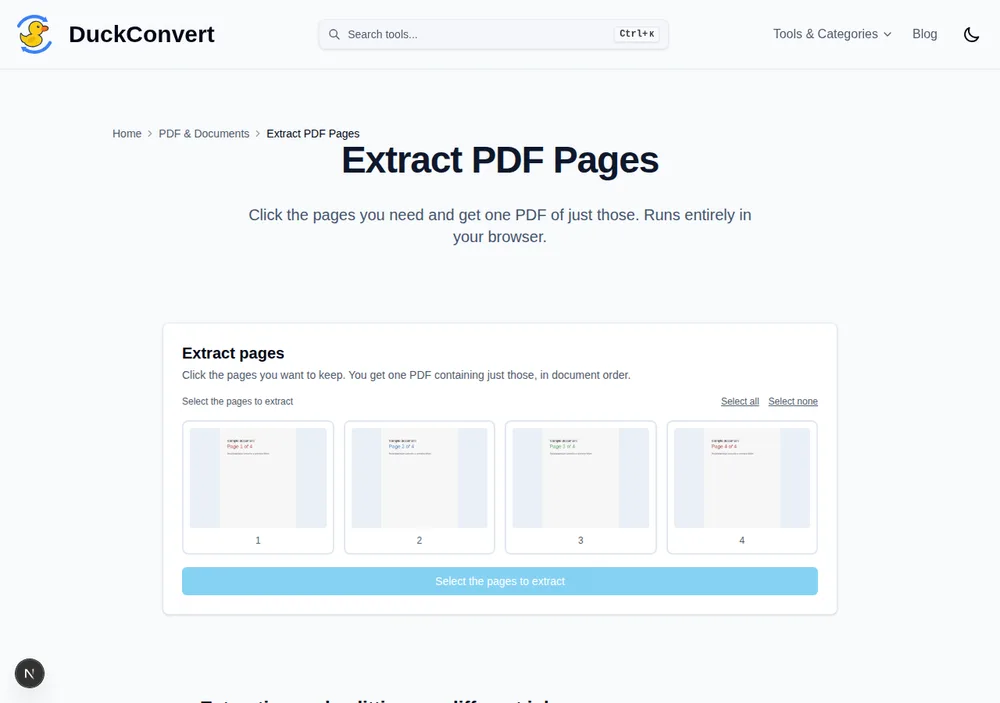
Mozilla’s pdf.js is the only part of the stack that actually paints a page: it walks the content stream, resolves fonts and colour spaces, and draws to a canvas. Turning a PDF into PNGs or JPGs is that, saved out. So is the grid of thumbnails in Extract Pages and Reorder Pages — picking page 7 out of a scanned bundle means seeing page 7, and there is no way to show it without rendering it locally first. Rasterising is one-way: once a page is pixels, the text in it is a picture of text, which is exactly why the OCR tool exists.
The rendering this section describes: four real pages, turned into the thumbnails above by pdf.js, on-device.
3. Decryption (Unlock PDF)
Removing a password is a cryptography problem, not a structural one, and the page-copying library deliberately does not implement it. Unlock PDF instead runs qpdf, the long-standing C++ PDF toolchain, compiled to WebAssembly and served from this site. It decrypts the document with the password you supply and writes out an equivalent file with no encryption dictionary. Note the distinction that trips people up: a PDF can carry an owner password that merely asks readers not to print or copy, and a user password that encrypts the bytes. The first is a request; the second is a lock, and no tool anywhere opens it without the password.
4. Selective image re-encoding (Compress PDF)
Most oversized PDFs are oversized for one reason: someone scanned paper at 300 DPI and the file is now a stack of full-resolution photographs. Compress PDF finds those embedded image streams, downscales and re-encodes each one at the quality you pick, and writes them back into the original document structure. Everything that is not an image is left alone. This tells you in advance what to expect: a scanned contract can lose most of its size, and a PDF exported from a word processor — text, vectors, nothing to re-encode — will barely move. If a text-based file is genuinely too large, the culprit is usually embedded font subsets or a stray high-resolution logo, not the text.
All four run on your own processor, on bytes your browser read from your own disk. The practical consequence is the one worth repeating: there is no upload step in any of them, so there is no copy of your document anywhere for us to keep, and no retention policy you have to take on trust.
Private PDF Tools FAQs
Are my uploaded PDF documents secure on DuckConvert?
Yes, 100%. Traditional online PDF utilities require you to upload files to remote servers where they are stored, parsed, and logged. DuckConvert uses pure client-side libraries (like pdf-lib and pdfjs-dist) running inside your web browser. No files or text layers ever leave your local computer. Your bank statements, IDs, and tax documents remain entirely private.
Can I combine PDF documents that have different page layouts or orientations?
Yes! Our local PDF merger handles documents with mixed orientations (portrait and landscape), various page sizes (Letter, A4, legal, etc.), and different resolutions. It perfectly aggregates pages and compiles them into a single, cohesive PDF without rendering artifacts or layout distortion.
Is there a page limit for splitting or merging PDFs?
No. Because our tools operate 100% locally in your browser memory, there are no artificial limits on the number of pages or files you can combine, extract, or split. Performance depends on your device's processor and RAM, allowing you to manage heavy, complex multi-hundred-page corporate files comfortably offline.
How do I extract a single page from a large PDF document?
Use the Extract PDF Pages tool: every page is rendered as a thumbnail, you click the ones you want, and you get one PDF containing exactly those in document order. Split PDF is the other shape of the same idea — it bursts the document into one file per page and hands you a ZIP of all of them, which is what you want when a scanner produced one long file out of several separate documents. Both run entirely in your browser.
Explore More PDF & Document Utilities
Discover our suite of fully secure offline document tools running locally in your browser.