Convert between image formats without uploading them. Operating 100% locally in your browser, your photos are never uploaded to any server. Supports WebP, AVIF, HEIC, PNG, JPG, and more.
Universal File Converter: Private & Fast
Convert images, videos, audio, and documents directly in your browser. Your files never leave your device, ensuring 100% privacy and security.
Image Converter
Convert images between modern formats. Ideal for thumbnails, screenshots, and photos.
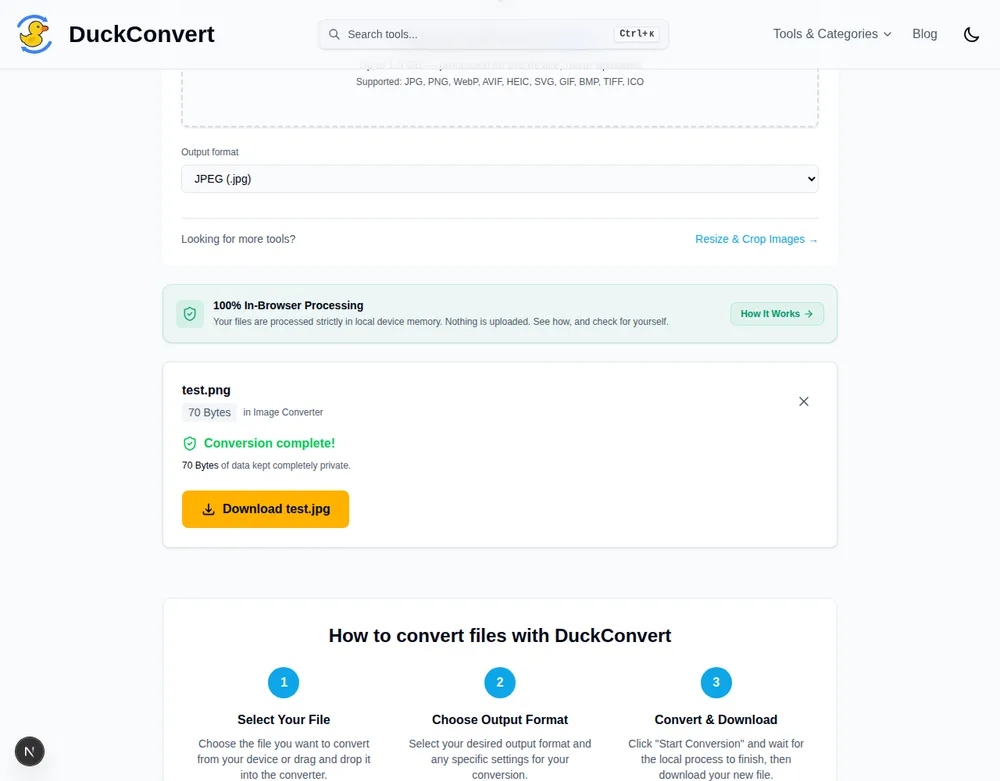
Choose the file you want to convert from your device or drag and drop it into the converter.
2
Choose Output Format
Select your desired output format and any specific settings for your conversion.
3
Convert & Download
Click "Start Conversion" and wait for the local process to finish, then download your new file.
Decoding happens in the page
The image is decoded and re-encoded inside the browser sandbox, by the Canvas API or by a codec compiled to WebAssembly. No copy is written anywhere off the device.
No transfer either way
The file is already in memory when you drop it in, so there is no upload to wait through and no result to fetch back. It also costs no mobile data beyond the page itself.
Works with no connection
A service worker caches the page and its worker bundles after the first visit, so image conversion keeps working offline. HEIC is the exception: its decoder is fetched on demand.
Understanding Image Formats: Lossy vs. Lossless Compression
When converting and optimizing images for websites, digital media, or archiving, choosing the right file extension and compression level decides both file size and what the image survives. Formats fall into two categories:
Lossless Compression (PNG, SVG)
Lossless compression preserves every bit of original image data exactly. Retains perfect clarity with no pixelation, making it standard for screenshots, logos, icon graphics, and designs with text. However, file sizes remain large.
Lossy Compression (JPG, WebP, AVIF)
Lossy compression discards detail the eye is least sensitive to. WebP and AVIF add better prediction filters and chroma subsampling on top of that, which is why a photograph can land well under half the size of the equivalent PNG. On flat colour, text and hard edges the same techniques produce visible haloes, so the saving is real for photographs and a mistake for screenshots.
How Modern Browsers Handle Offline Image Encoding
DuckConvert bypasses backend servers entirely by compiling native compression libraries (like Rust-based OxiPNG or C-based libwebp) into WebAssembly (WASM). This allows your browser to run heavy graphic processing algorithms at near-native speeds. For basic formats, we use the HTML5 Canvas 2D API to render, scale, crop, and output high-quality image blobs dynamically.
The converter above, converting a real file, right now.
Turning a vector into pixels: what decides the output size
Converting an SVG is unlike every other conversion here, because an SVG has no pixels to begin with. It is a set of drawing instructions with no inherent resolution, so something has to decide how large the resulting bitmap should be — and the answer is not a setting you choose.
The SVG is handed to the browser’s own renderer, drawn once onto a canvas, and read back out. The canvas takes its dimensions from the image’s intrinsic size, which comes from the width and height attributes on the <svg> element itself.
That has a consequence worth knowing before you are surprised by it. Many SVGs exported for the web carry only a viewBox and no explicit width or height, precisely so they scale to whatever container they are dropped into. Such a file has no intrinsic size to read, and the browser substitutes a default — so a logo that looks razor sharp on a page because it is being drawn at 600 pixels wide can rasterise to something much smaller, and enlarging that result afterwards will look soft.
The fix is in the source file rather than the converter: add width and height attributes at the size you actually want, keeping the viewBox intact so the proportions stay correct, and convert again. It is a one-line edit in any text editor, and it is the difference between a crisp export and a blurry one.
Transparency survives, if the destination can hold it. An SVG with nothing behind the artwork converts to PNG or WebP with that area still empty, so the result drops onto a coloured page without a white box around it. JPEG has no alpha channel at all, so choosing it flattens the transparent area onto white — not a defect, just the format. If you want the background gone, PNG and WebP are the two that keep it.
This is also why the conversion only runs one way. Every other pair on this page is one grid of pixels re-encoded as another, and is reversible in the sense that you can convert back and get a comparable image. Rasterising a vector is a one-way step: nothing recovers the shapes from the pixels afterwards, so keep the SVG.
Image Converter FAQs
How does DuckConvert process images without a server?
DuckConvert uses modern browser technologies like the HTML5 Canvas API, WebAssembly (WASM), and local JavaScript libraries (such as @jsquash and browser-image-compression) to decode, process, and re-encode image files directly in your computer's RAM. No image data is ever transmitted to an external server, meaning your photos stay 100% private.
What image formats can I convert between?
We support cross-conversions between JPG, PNG, WebP, AVIF, HEIC, SVG, and GIF. For example, you can convert Apple's HEIC photos from your iPhone into widely compatible JPGs, or convert heavy PNG files into highly optimized next-gen formats like WebP or AVIF.
Is there a limit on the image file size I can convert?
Since all processing occurs locally on your machine, there is no hard server-imposed file size limit. The only limit is the memory (RAM) and processing power of your device. You can easily process large multi-megapixel camera files or batches of photos offline.
What is the difference between WebP, AVIF, and PNG?
PNG is a lossless format ideal for screenshots, text, or graphics requiring transparent backgrounds, but files are larger. WebP and AVIF are next-generation formats that provide superior lossy and lossless compression. AVIF generally offers the highest compression efficiency (up to 50% smaller than JPG with identical quality), making it the perfect choice for modern web optimization.
Explore More Image & Vector Tools
Discover our selection of client-side graphic utilities running locally in your browser.